
Use Reviewer Groups to organize and assign reviewers to CFP submissions. You can set review limits, control what reviewers see, and assign them to specific forms.
To Set Up a Reviewer Group:
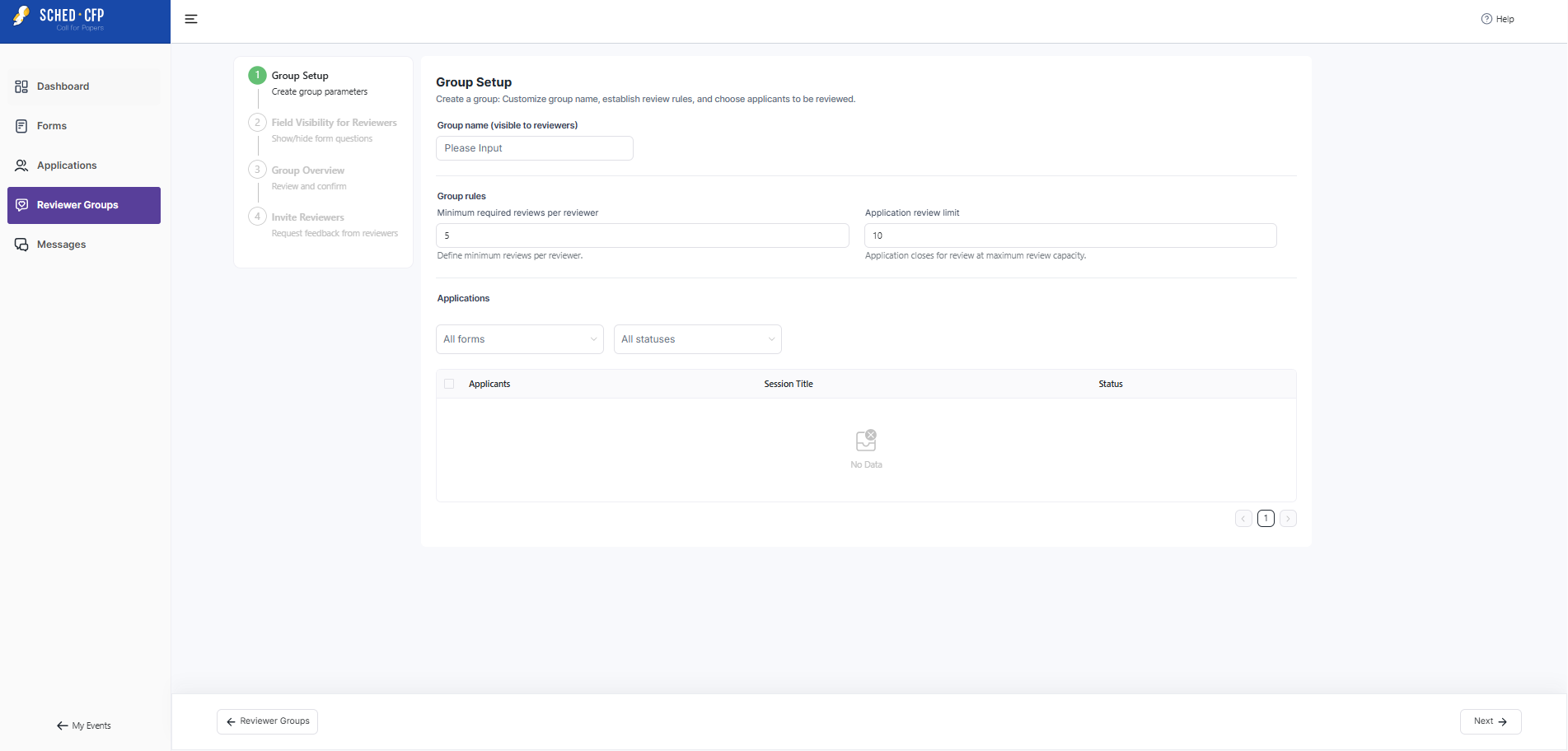
- Click “Add Reviewer Group” and give it a name (e.g., “Panel A”).
- Set the minimum required reviews per reviewer – This is the minimum number of applications each reviewer in the group must review.
- Set the application review limit – This is the maximum number of reviews each application can receive.
- For example: If the limit is set to 10, once 10 different reviewers have submitted comments on a single application, it will automatically close for further review. No additional feedback can be added after that point.
- Select the form(s) you want the group to review.
- Assign which submissions the group should review, either:

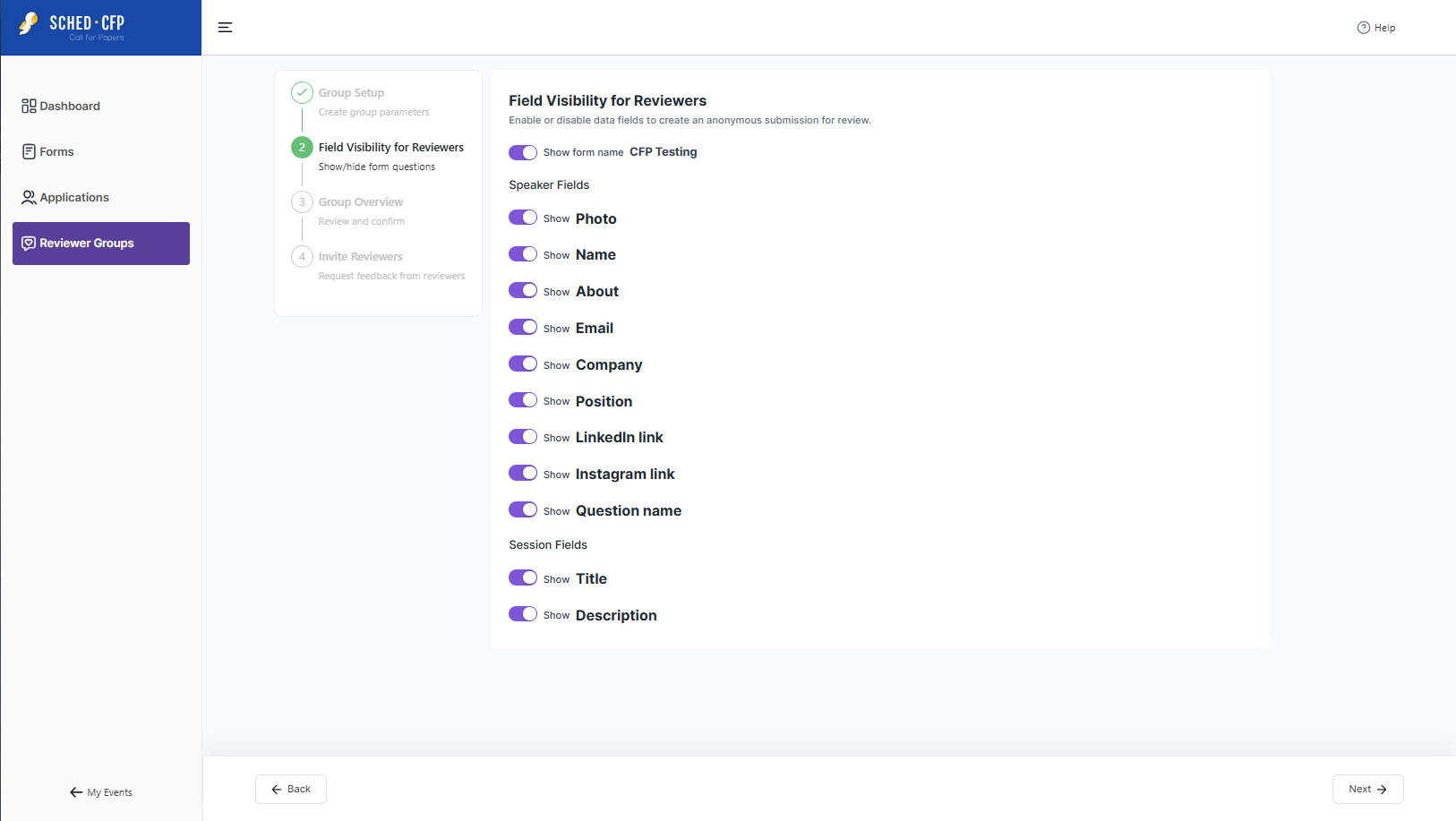
Customize Visibility:
- Choose whether reviewers can see session details or speaker info.
- You can hide names for unbiased reviews.
- Click Next to review settings.

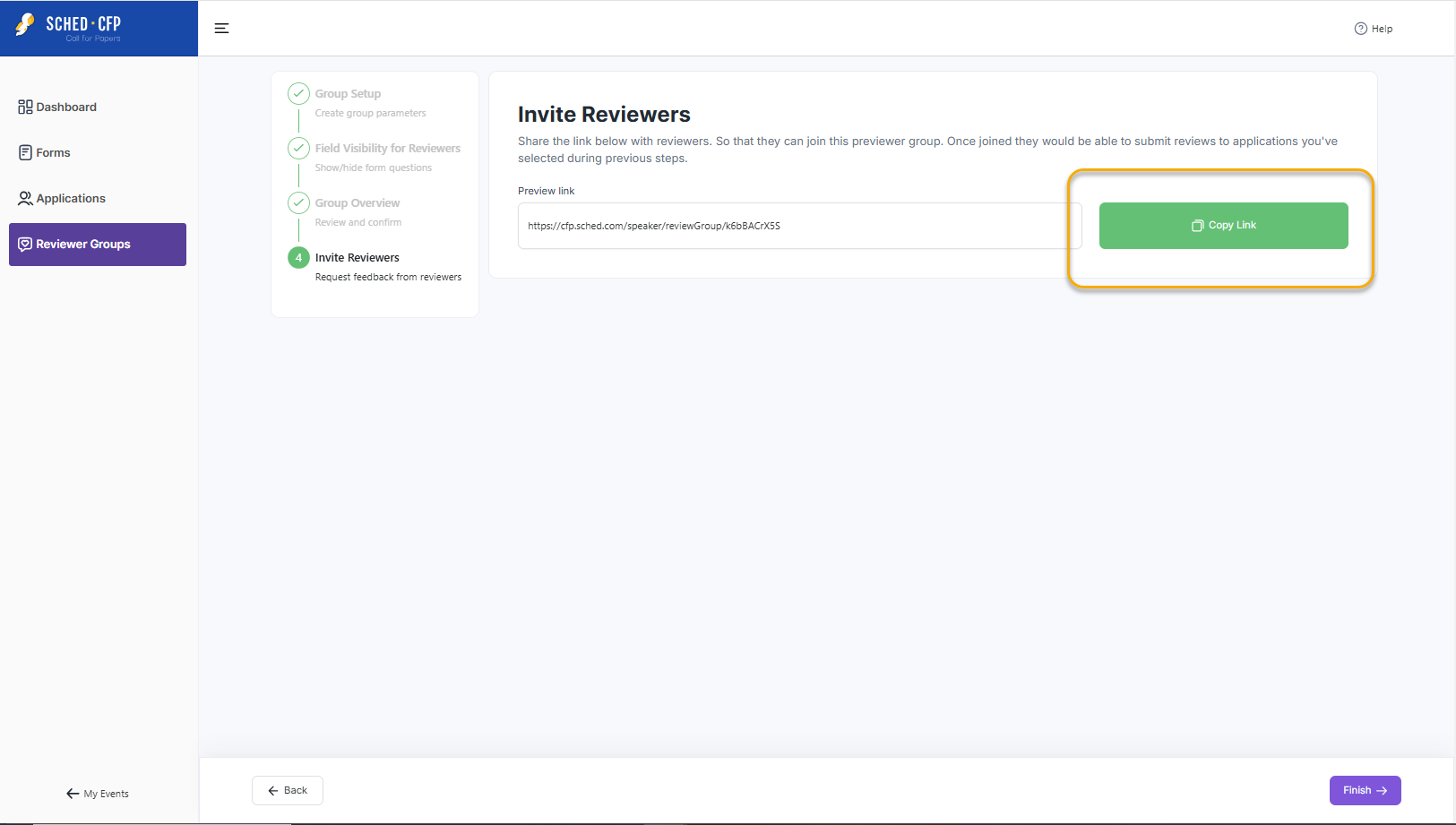
Invite Reviewers:
- Copy and share the unique group link via email or chat.

Reviewing Submissions:
- Reviewers access only their assigned submissions.
- First-time reviewers must create a login. CFP logins are separate from standard Sched logins.
- Reviewers can:
- Read session details
- Rate submissions (star rating)
- Leave comments
Managing Reviews:
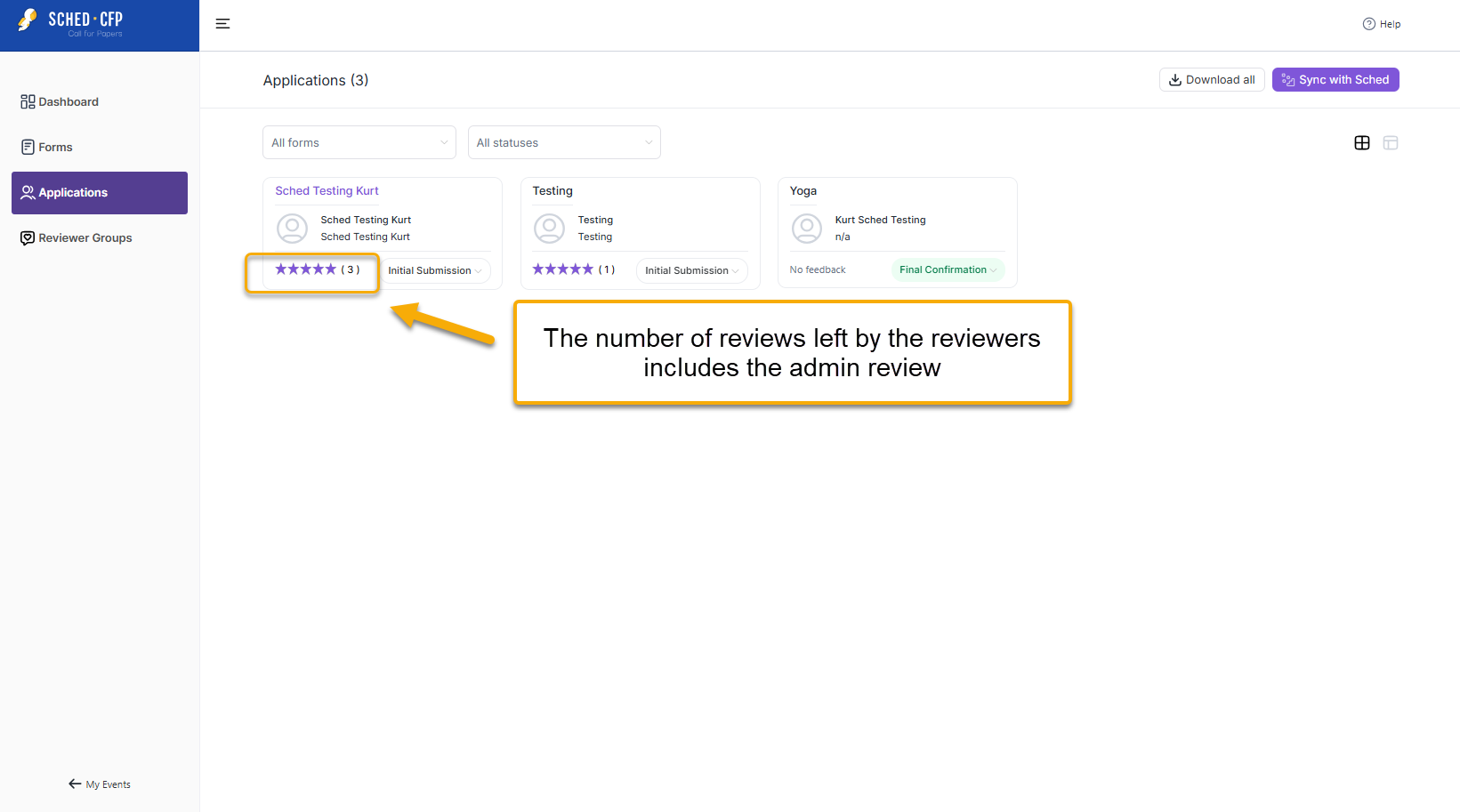
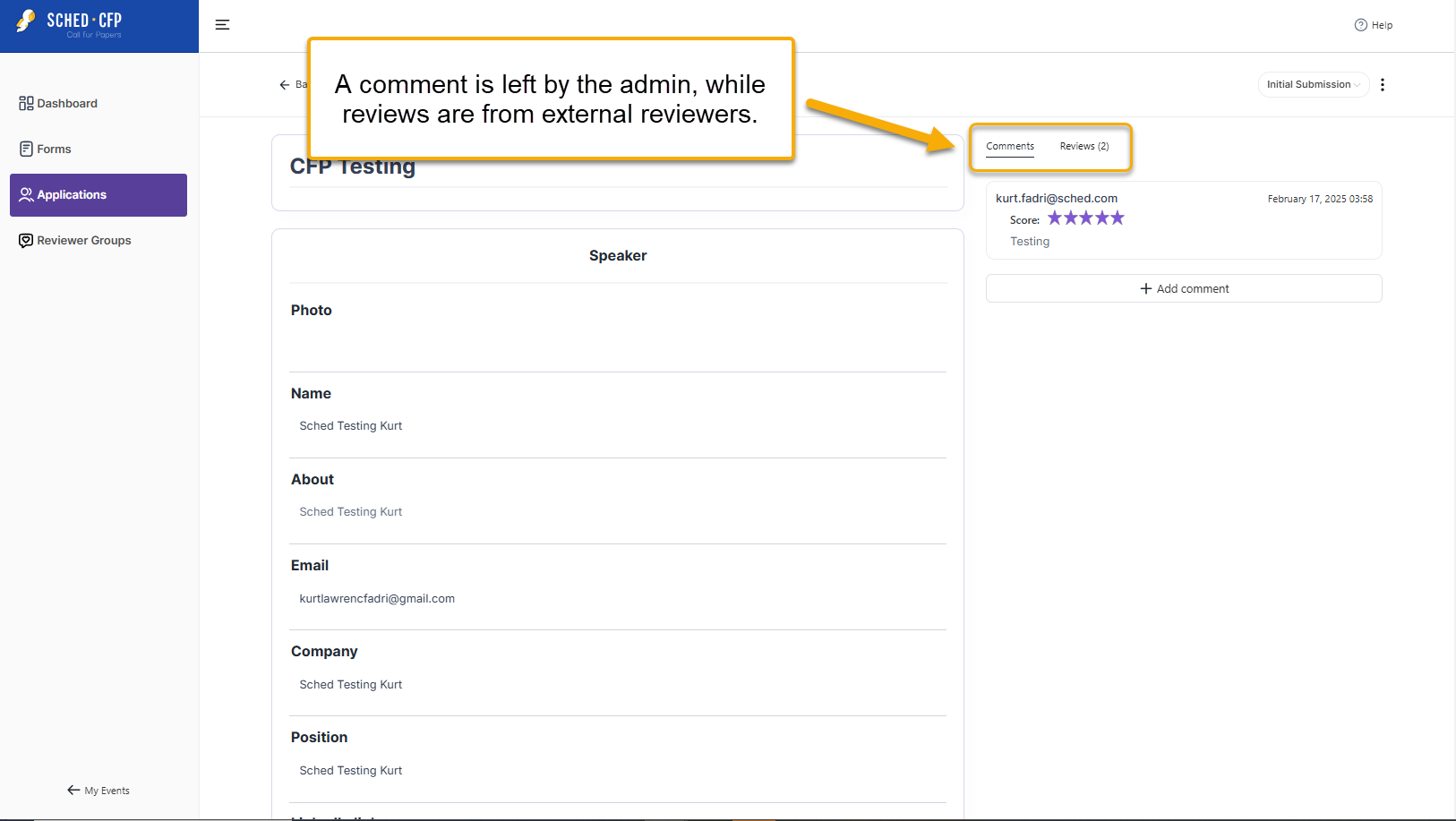
- All feedback appears in the Applications section.

- Two feedback types:
- Comments – Internal notes from event planners (visible only to admins).
- Reviews – Reviews – Ratings and feedback from external reviewers (visible to admins and to reviewers assigned to that applicant; reviewers cannot see ratings submitted by others).
Note: For new submissions, manually add them to groups or wait until all submissions are in before sharing reviewer links.


