Table of Contents
Save time on data entry by importing repeating sessions from past events into your new event.
How to Copy Sessions from a Past Event into a New Event #
- Go to your past event’s Control Panel.
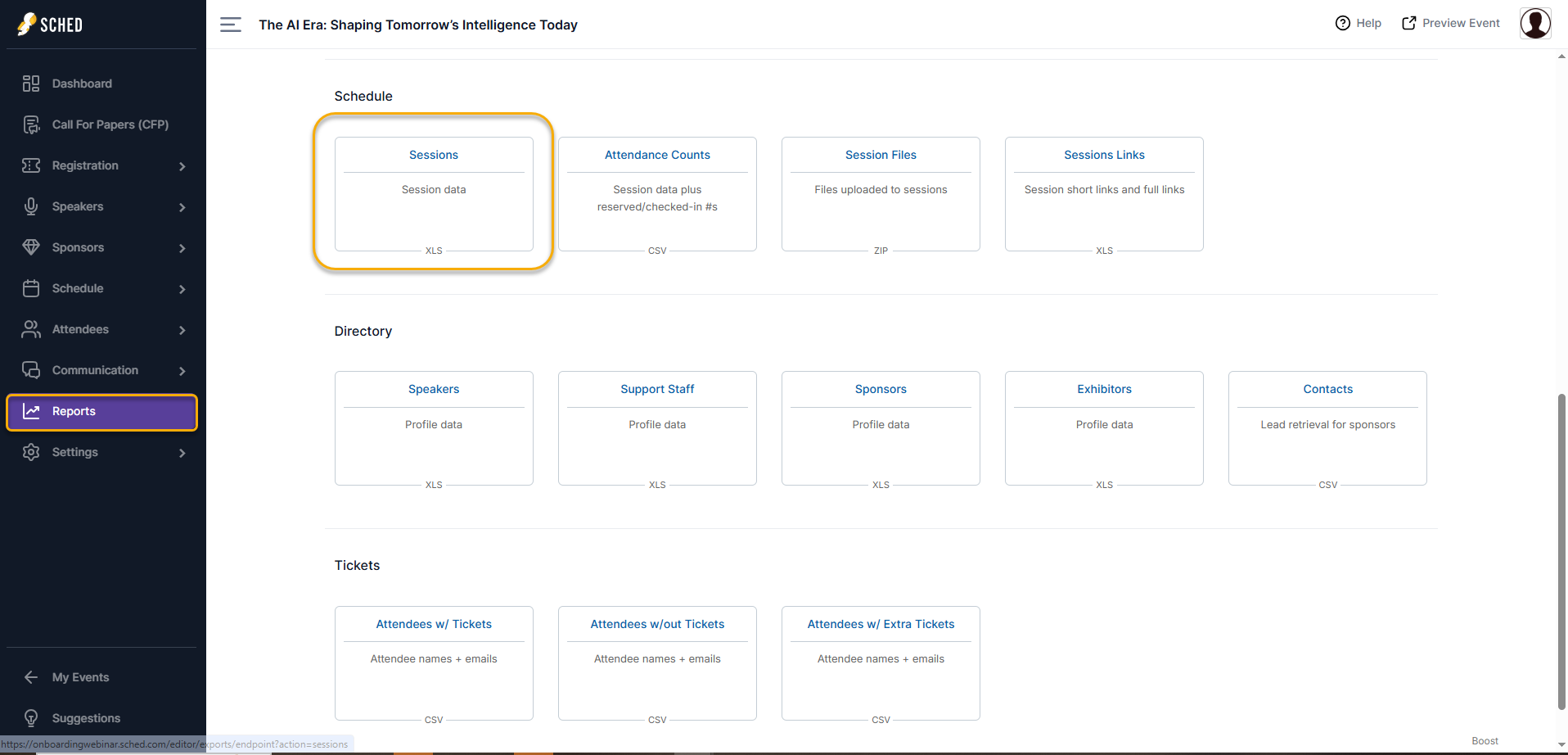
- Click the Reports tab.
- Under the Schedule section, click “Sessions” to download the session spreadsheet.
- Alternatively, go to the Schedule tab → Sessions, then click the plus sign (+) and choose to download the spreadsheet.

- Alternatively, go to the Schedule tab → Sessions, then click the plus sign (+) and choose to download the spreadsheet.
- Copy the session information from the downloaded spreadsheet.
- If you haven’t created a new event yet, you can duplicate your past event instead. This will copy the session data automatically, and you can skip the rest of this guide.
- If you’ve already created the event but forgot to copy the sessions during duplication, proceed to the next step.
- Paste the copied session information into your new event’s spreadsheet.
- Make sure to update the session dates and times, then save the spreadsheet.
- Upload the updated spreadsheet to your new event.