
What Are Private Sessions? #
Secret sessions are sessions that are hidden from most attendees.
Only the following people can see them:
- Admins
- Check-In Managers
- Attendees who are enrolled in the session
- Other roles—speakers, artists, moderators, sponsors, or exhibitors—who are not attached to the secret session.
These sessions are great for invite-only meetings, VIP sessions, or internal use.
Note: Private Sessions are only available on the Ultra plan. To upgrade, contact our Sched Event Expert at [email protected].
How Private Sessions Look #
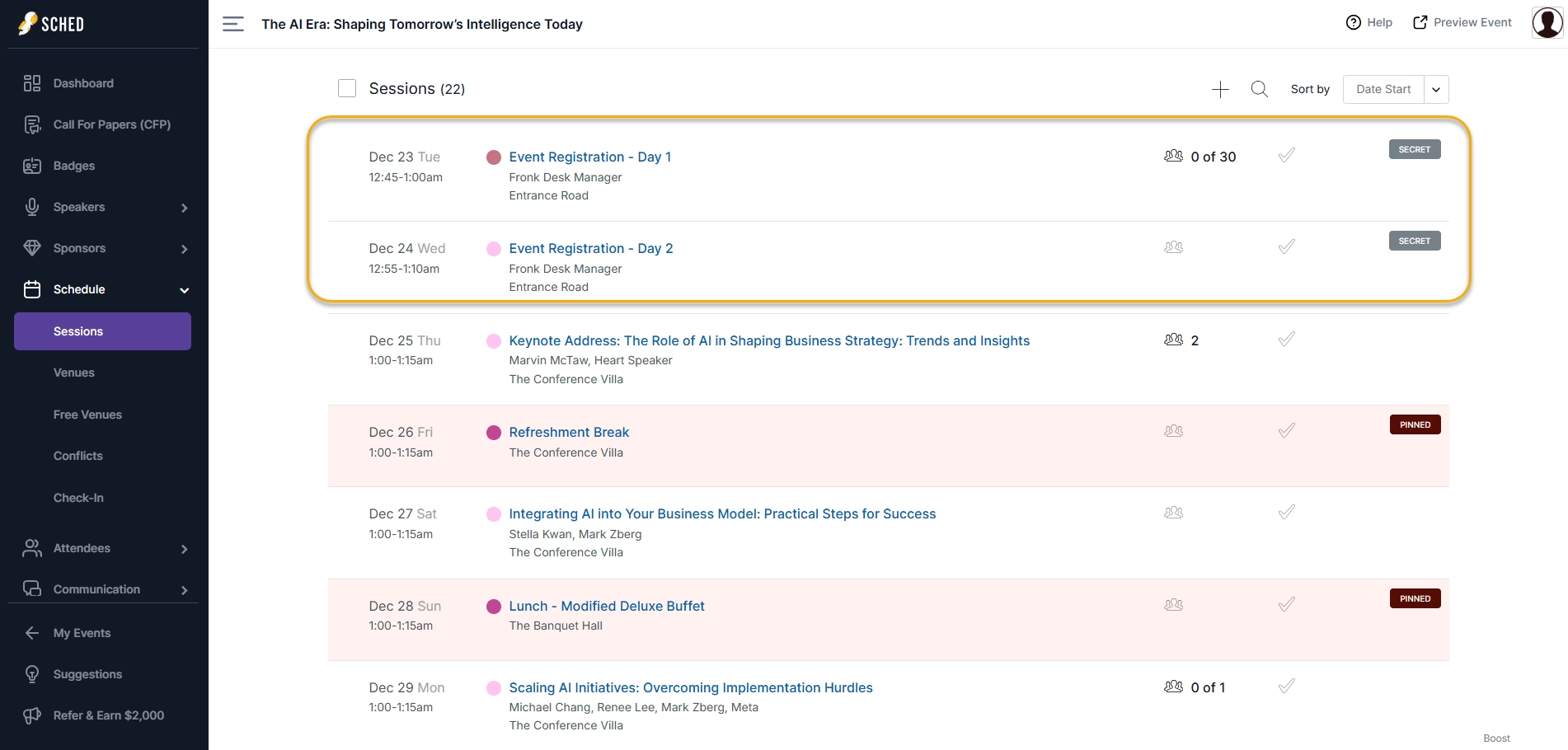
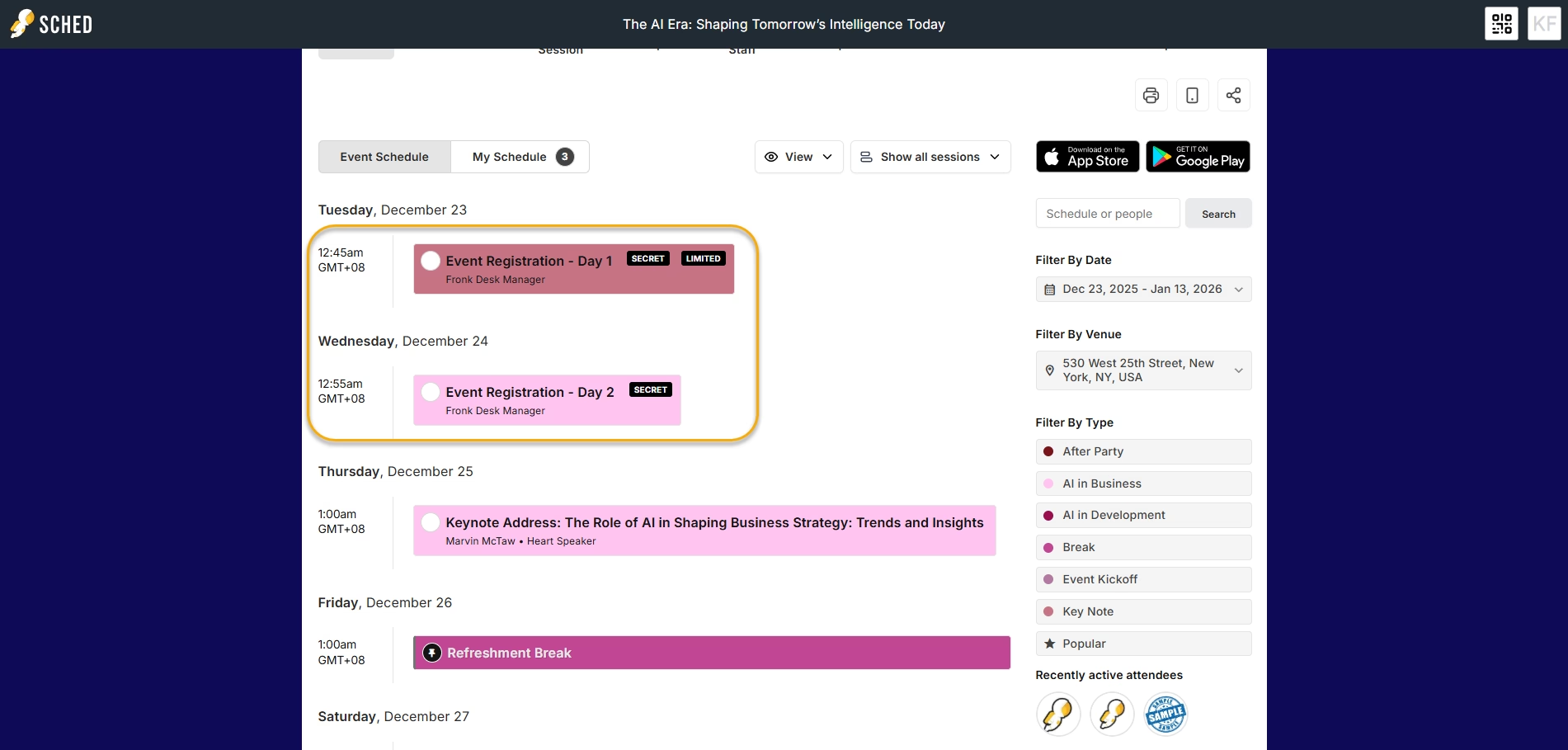
- In the admin panel, sessions show a Private or Secret label.

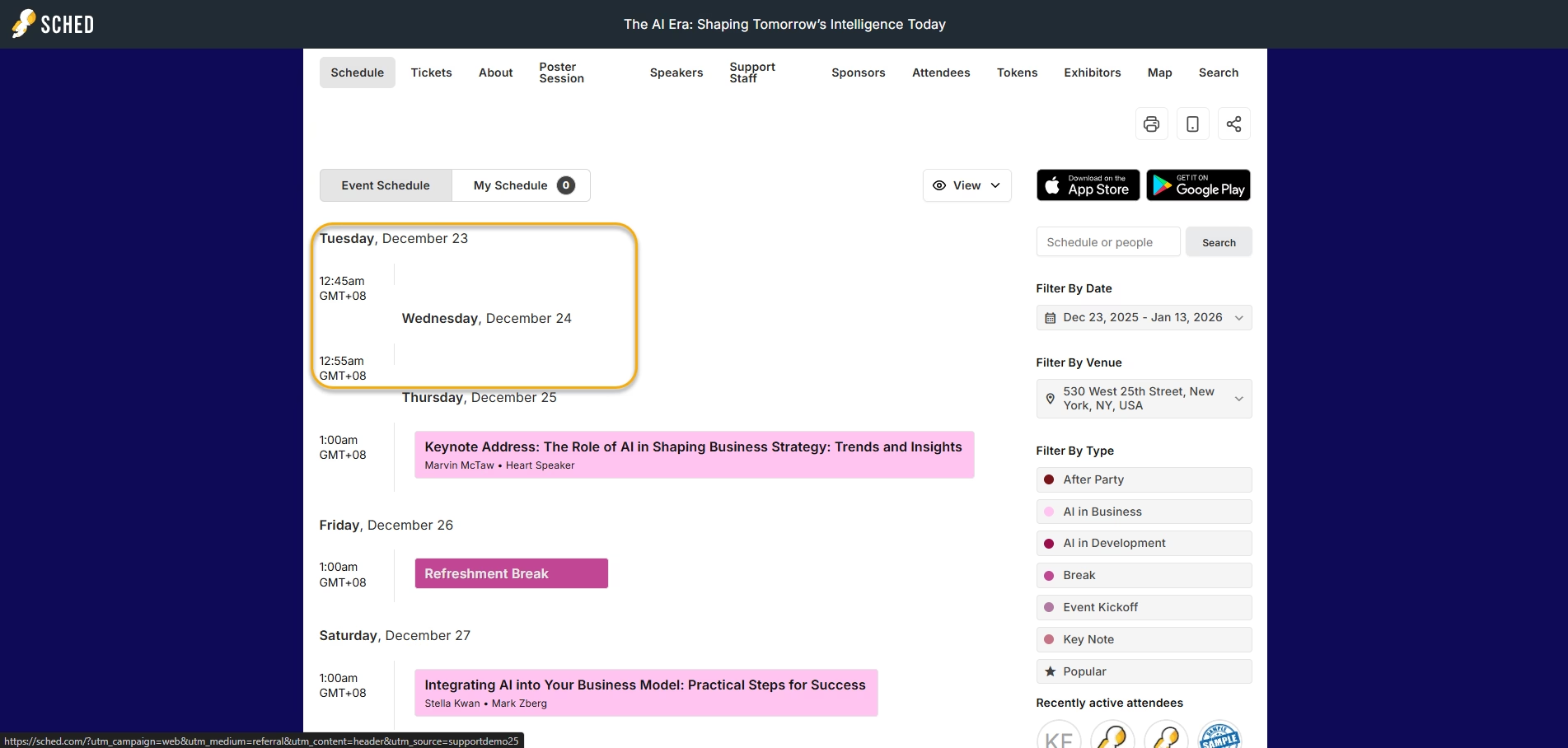
- On the public schedule, only people with access will see them.

- Attendees who are not included will not see the session at all.

How to Make a Session Private #
You can make sessions private in four different ways:
1. From the Session List
-
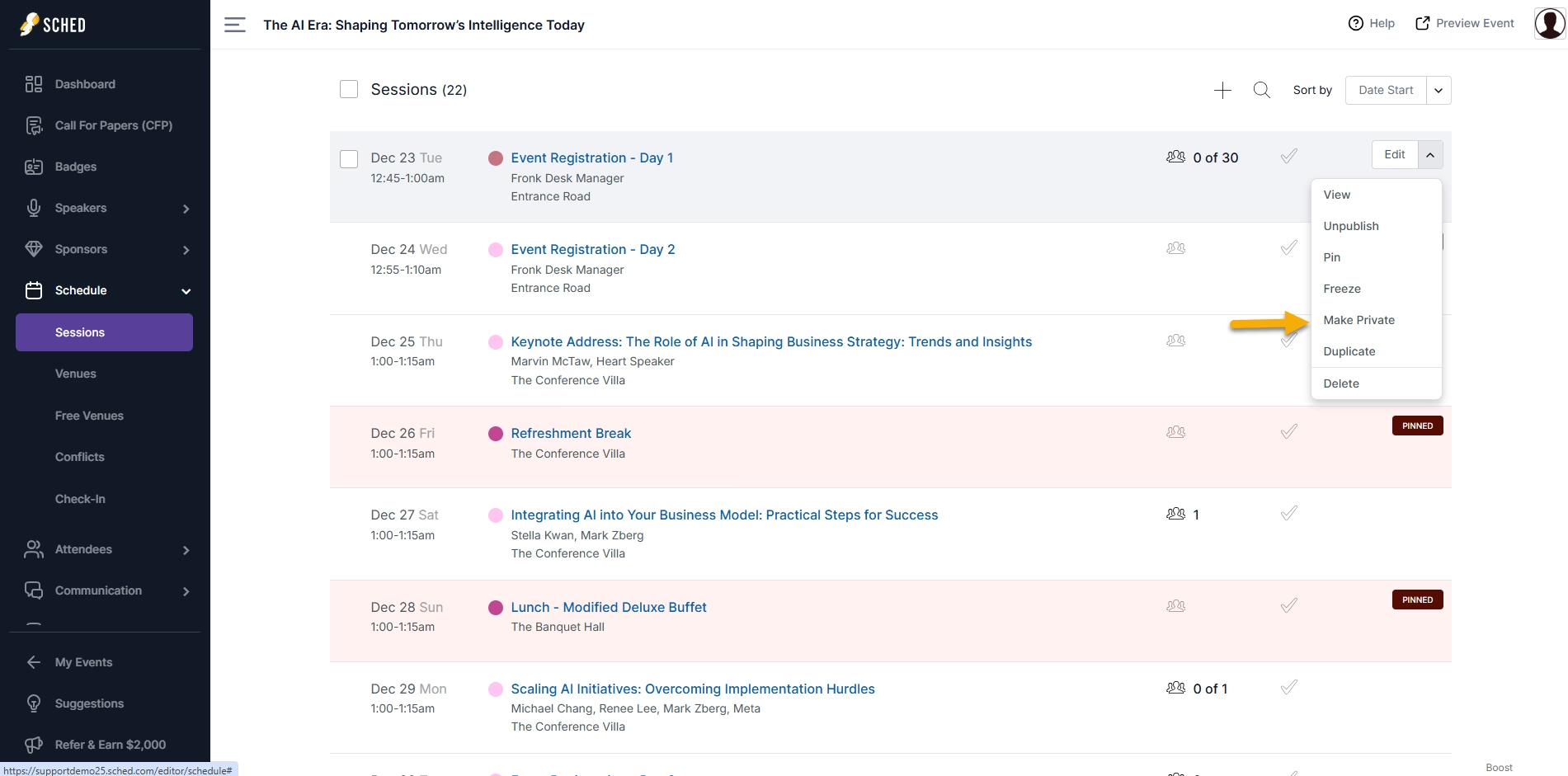
- Go to your Schedule tab under Sessions.
- Click the dropdown arrow next to the Edit button.
- Choose Make Private or Make Secret.

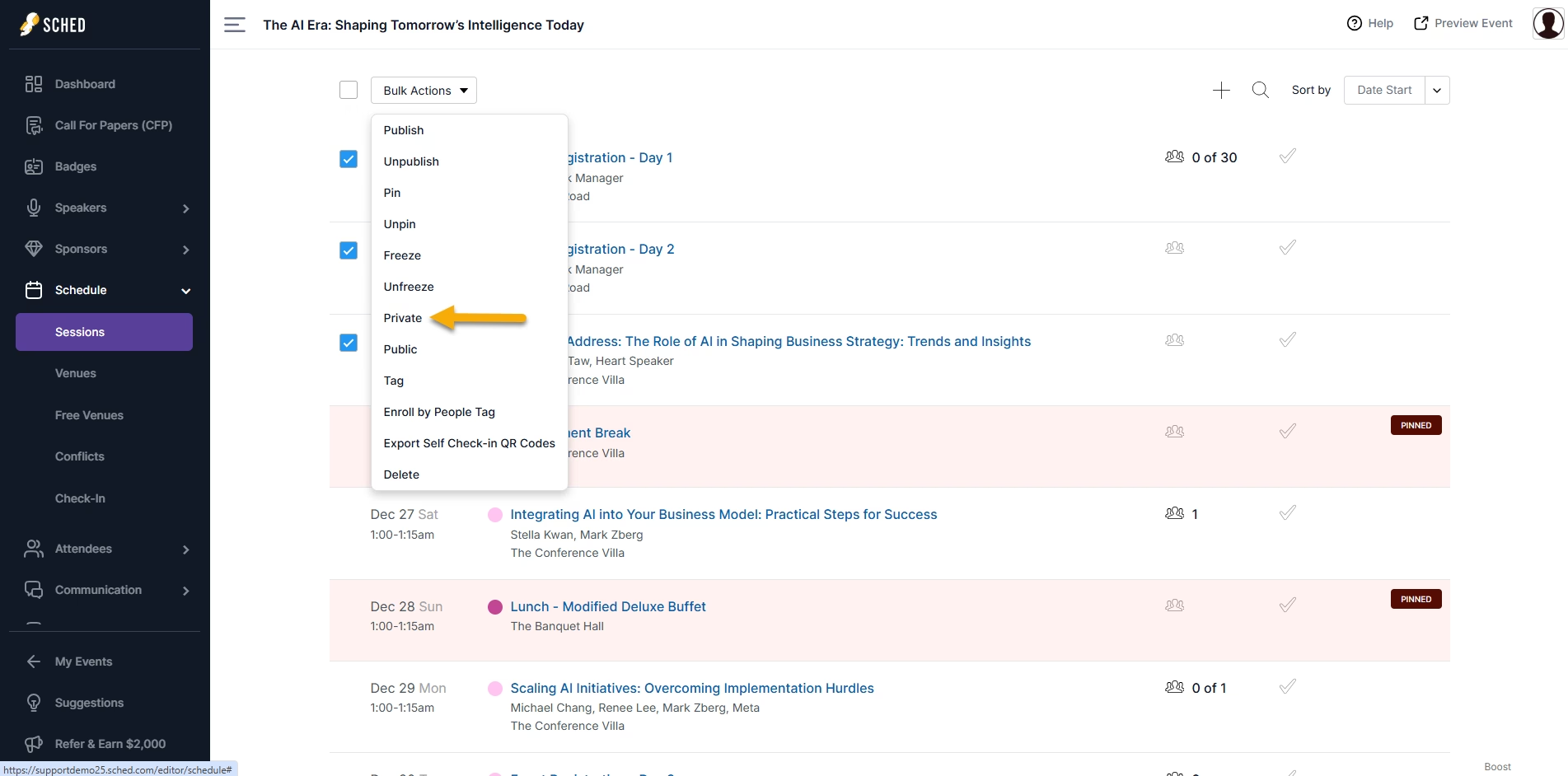
2. Using Bulk Actions
-
- Select multiple sessions using the checkboxes.
- Click Bulk Actions → Make Private.

3. In the Session Editor
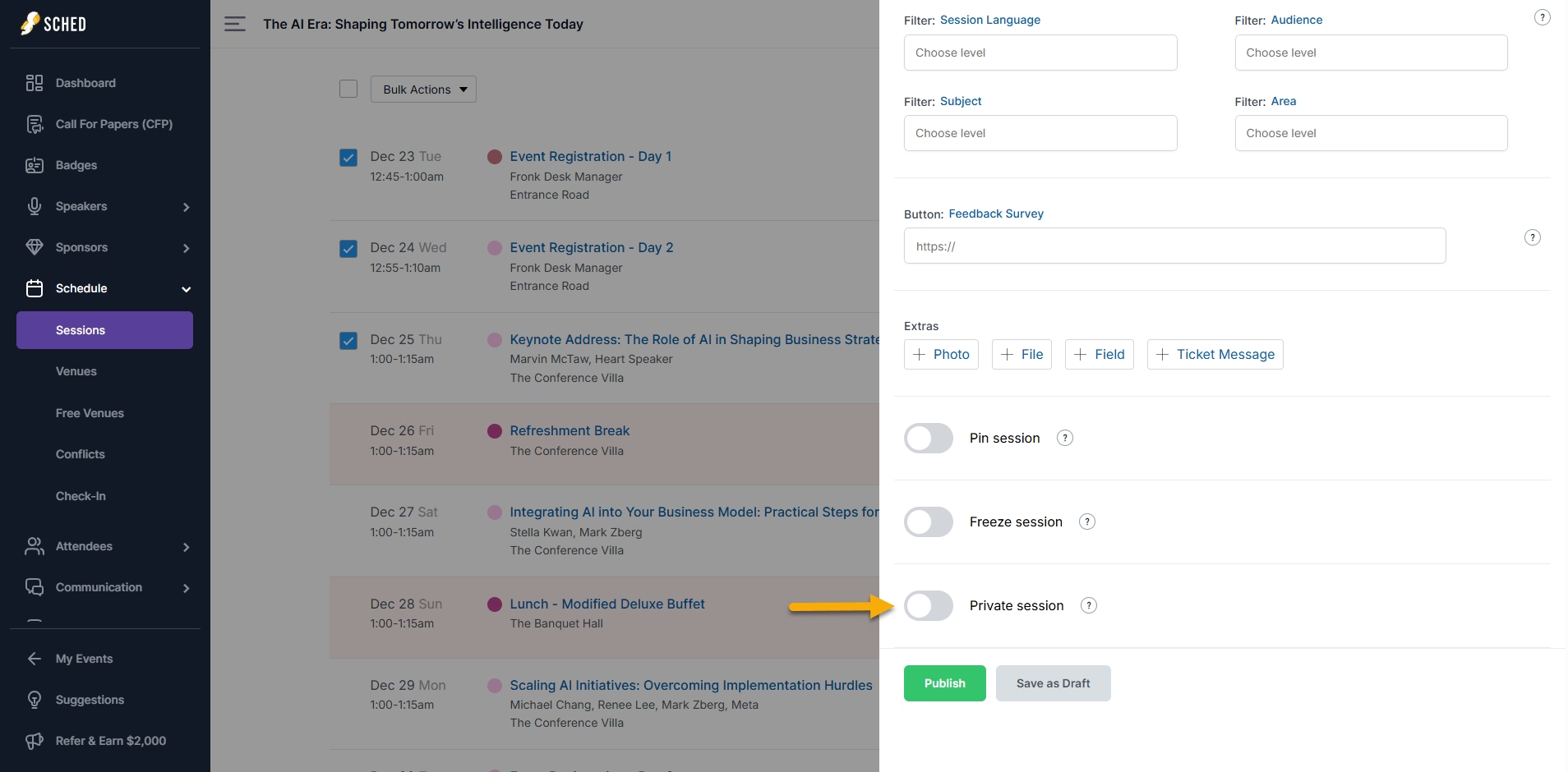
-
- Click the Edit button for the session you want to update.
- Toggle on the Private or Secret option.
- Click Save.

4. Via Spreadsheet
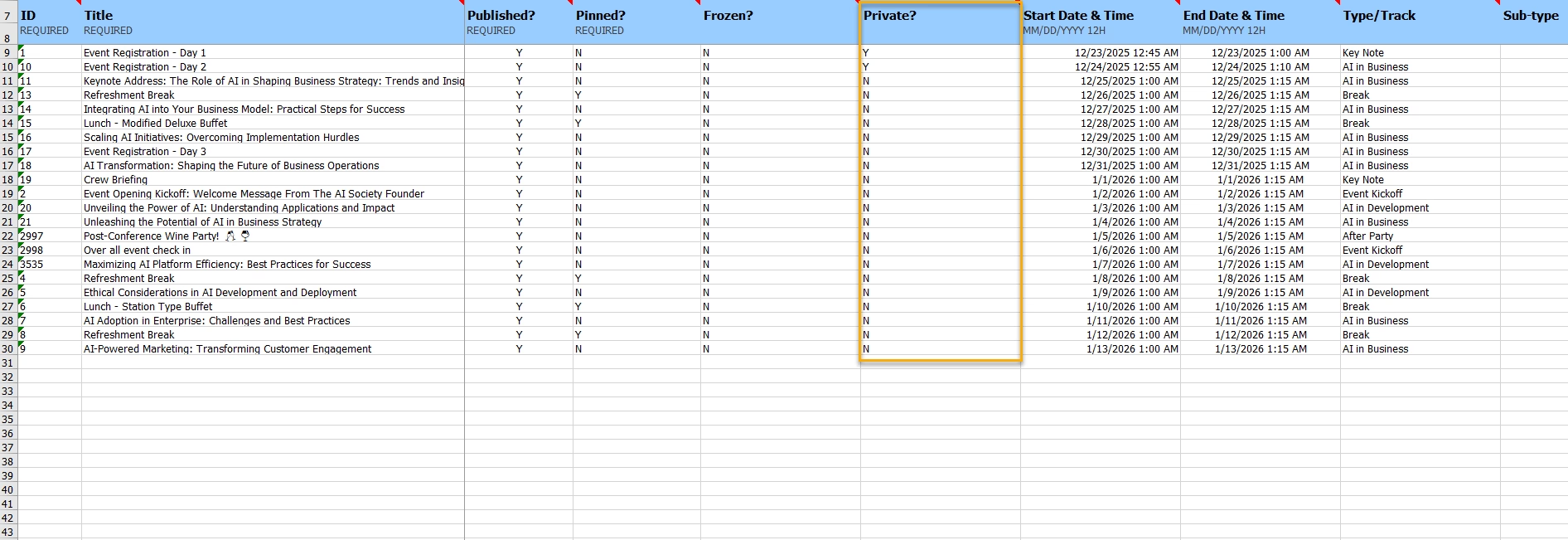
-
- Click the plus sign (+) button at the top of the session list to download the session spreadsheet.
- In the spreadsheet, find the “Private” column.
- Enter Y for any session you want to make private.
- Re-upload the spreadsheet to apply your changes.

Notes:
- A session can be Public, Private, or Private + Frozen.
- Private + Frozen means attendees can’t remove the session from their schedule.
- Private sessions cannot be pinned, since pinned sessions are meant to be public.
- Private Sessions are not yet supported in the Check-In feature (for scanning or tracking attendance). Support for this is coming soon.


