Table of Contents
You can add and remove sessions from an attendee’s schedule. This is great for creating schedules for VIPs or making changes for attendees who don’t have access to the app.
Add Sessions #
-
Go to Attendees.
-
Click the attendee’s name.
-
Click “Schedule”
-
Click on the add button.
-
Choose a session from the dropdown menu.
-
Click “Enroll Attendee.”


Withdraw Sessions #
- Go to Attendees.
- Click attendee’s name.
- Click “Schedule.”
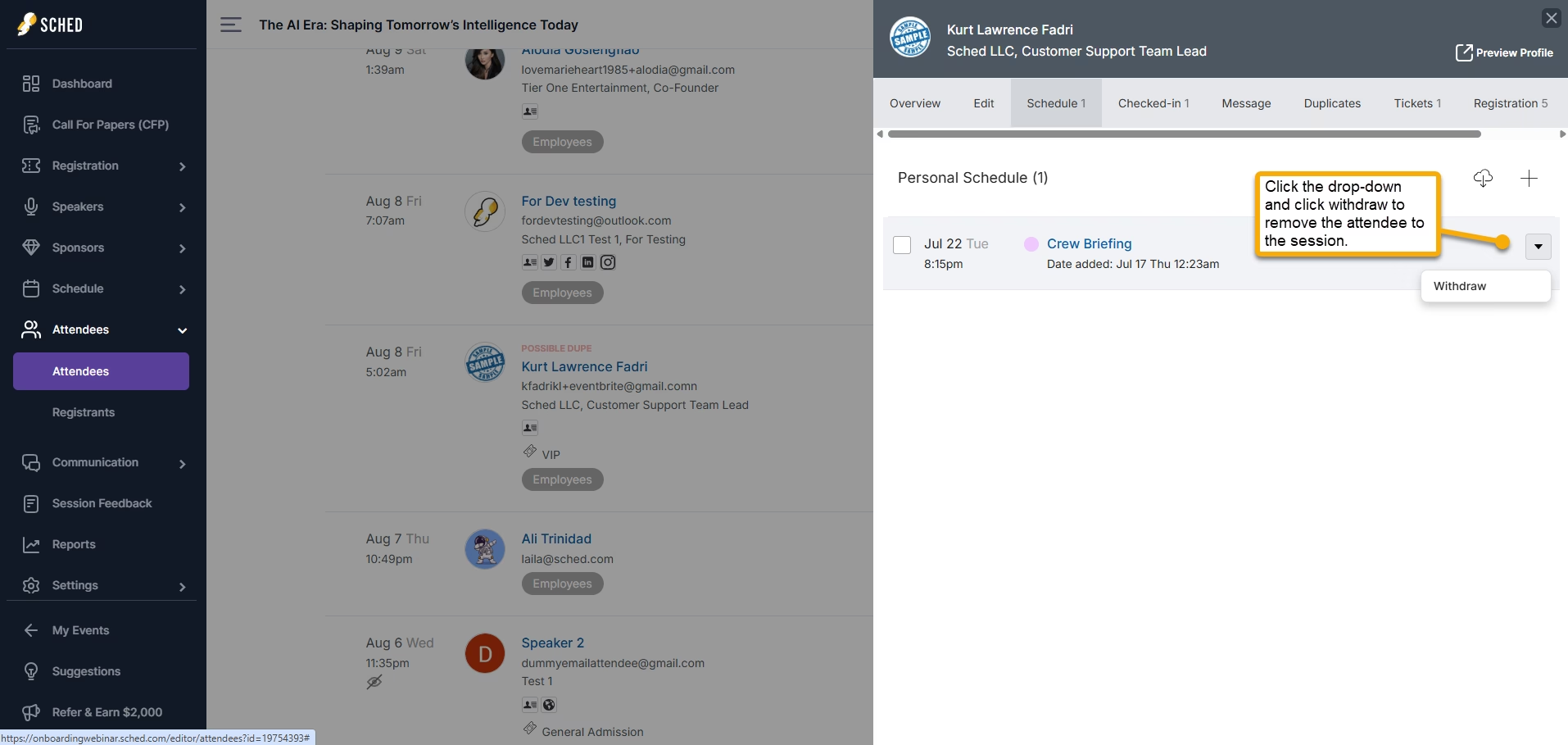
- Click on the drop-down button and then “Withdraw.”

Force Attendance #
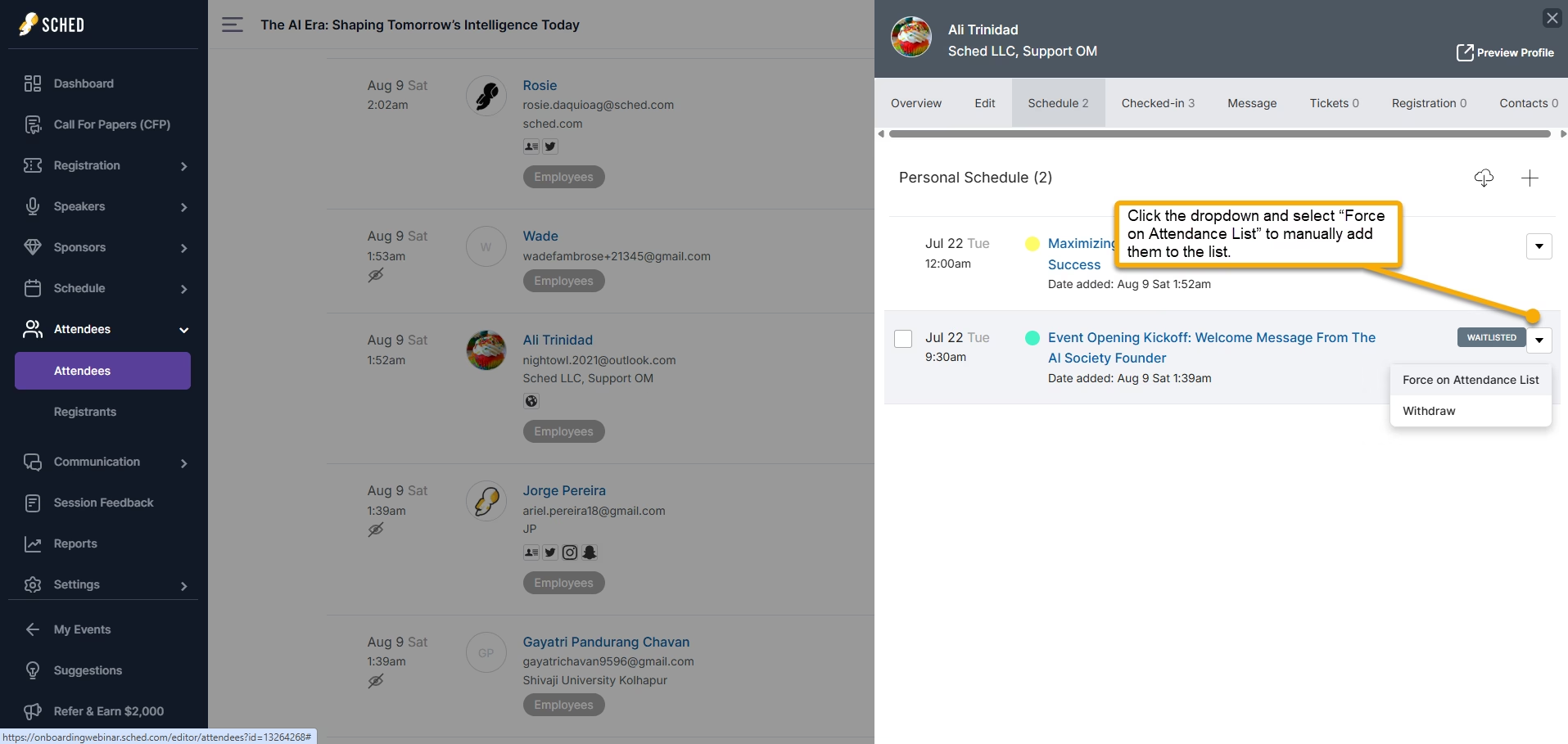
If an attendee is on a session waitlist, you can use “Force Attendance” to override that limit. This will not affect any other attendees’ schedules.
-
Go to Attendees.
-
Click attendee’s name.
-
Click “Schedule.”
-
Click the session they’re waitlisted on and click “Force on Attendance List.”